How to Change SSP Phone Number and Reset Password
After applying for the SSP Scholarship, students may face login errors. The main problems are forgetting the password or not receiving the OTP on the registered mobile number.
This issue usually occurs when students have already submitted their application and want to check their application status.
In some cases, students do not save their passwords or forget them over time. Secondly, they may not have their registered mobile number active or accessible.
How to change the password
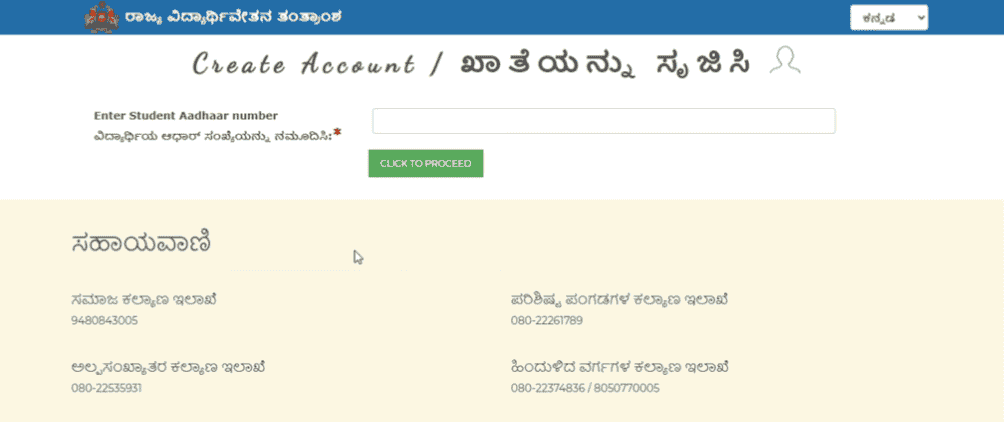
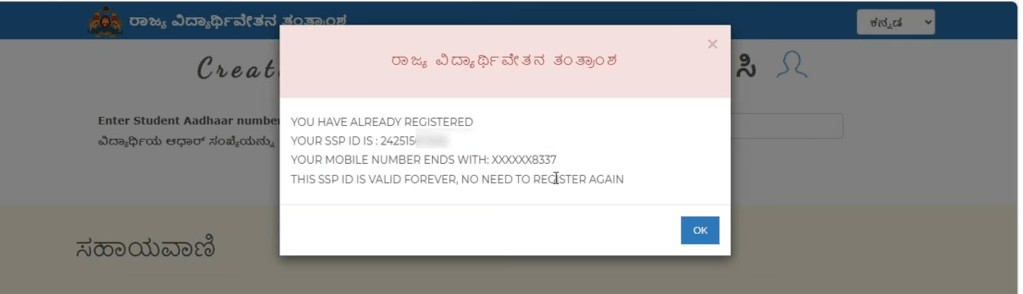
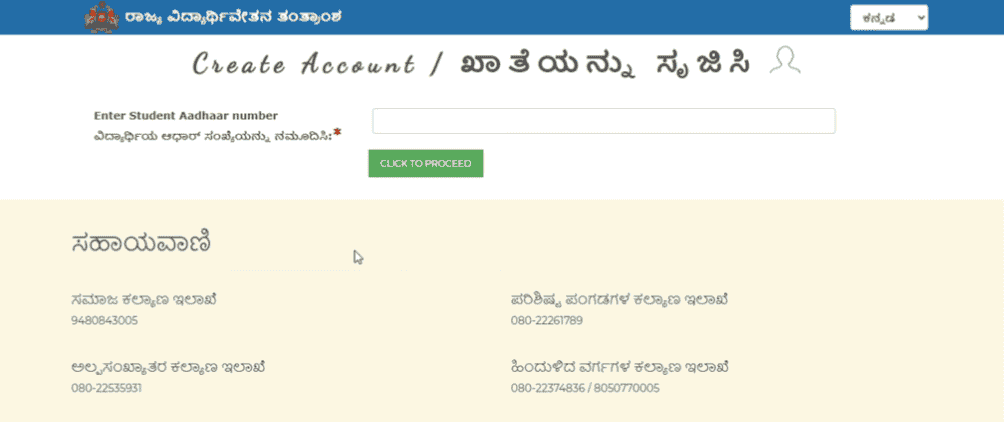
Open the official SSP Portal website and click on the Pre-Matric or Post-Matric Scholarship link. Here, you can view your SSP ID and the mobile number it is linked to.
Enter your Aadhaar number and click on the Click to Proceed button. Note the mobile number, as it will be used in the next step.
Next, open the login page. You will see an option called Forgot Password. Select this option.
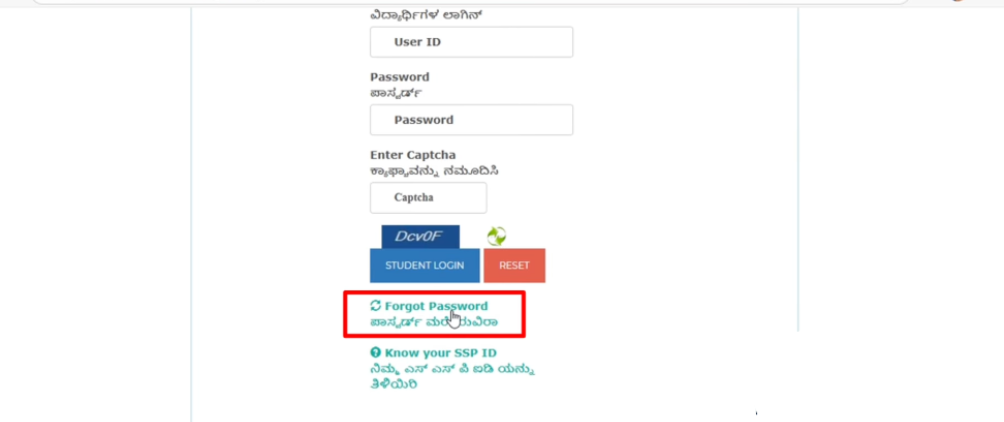
Enter your student login user ID. Enter the SSP ID that is linked to the mobile number. Set a new password, then click on the Get OTP button. Enter the received OTP and click on the Change Password button.
After clicking, your password will be changed. A confirmation message may not be displayed.
How to change the mobile number
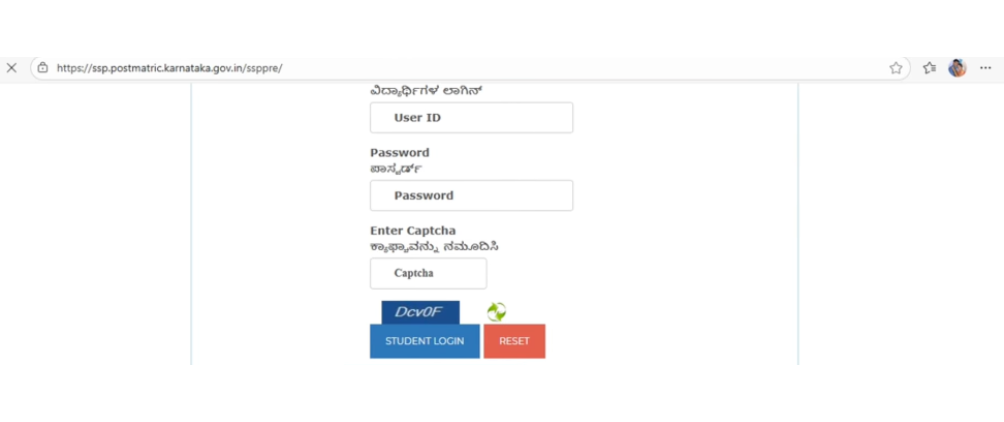
Log in to the SSP Portal using your student SSP ID and password.
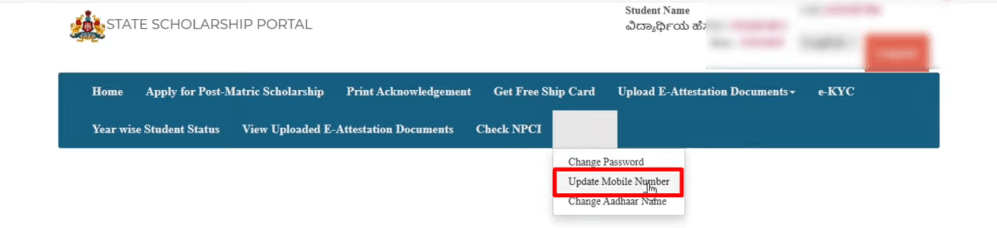
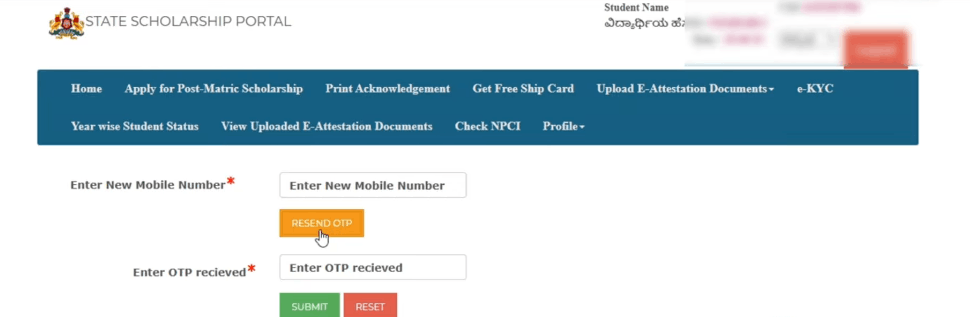
On the home page, click on Profile, then select Update Mobile Number. Enter your new mobile number and click on Get OTP. Enter the OTP and click on the Submit button.
Screenshot 5, 6
Important Points While Creating a New Password
There are a few points that are initially displayed during password changing. First is to follow the portal password format. It clearly shows the rules for creating a password. If you do not follow them, the system will reject it.
Secondly, both fields must have the same password. The new password is demanded twice to verify that the student has entered the correct password.
Thirdly, paste the correct OTP. Without OTP verification, the new password does not activate.
💡 The password must be 8–15 characters long and include at least one digit, one uppercase letter, one lowercase letter, and one special character (@, #, $, %, !). Example: Secure@123